
To correctly display the location of a job and see it later in the job overview, you must enter the location both in the job itself and in the account settings. This ensures that the correct information appears in your listings and that you maintain an overview of multiple locations.
Displaying the location in the job overview
If your company has multiple locations, you can display them in the job overview to keep track of everything.
- In Ostendis, go to “My Account > Settings”.
- Activate the “Show additional information for jobs” toggle in the “Job display” section.
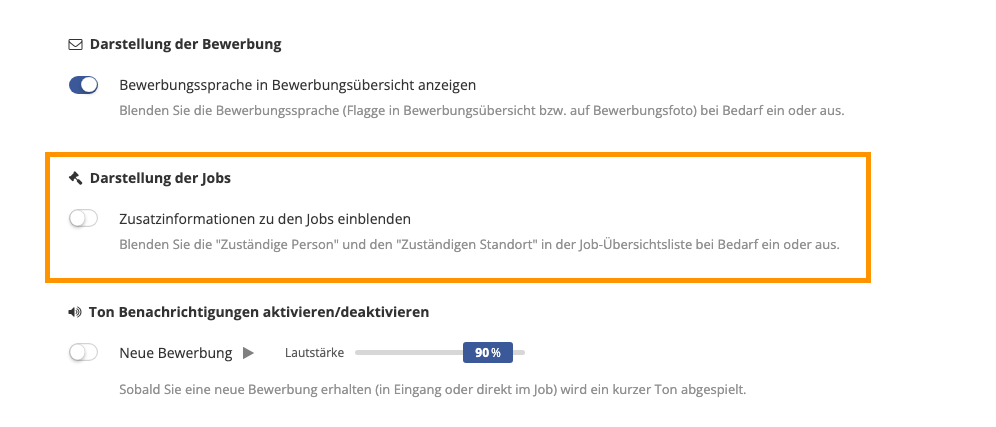
Result:
From now on, the assigned location will be displayed under each job title in the job overview. This location must be correctly entered in the respective job under “Settings & Permissions” on the right side under “Responsibility” at “Responsible location”.
Entering the location correctly
If the correct location has not yet been entered, go to Company > Locations (Addresses) and create the desired location using the blue “New Location” button.
Then open the relevant job and switch to Settings & Permissions. Under Responsibility > Responsible location, you can now select the new location.
Wie hilfreich war dieser Beitrag?