
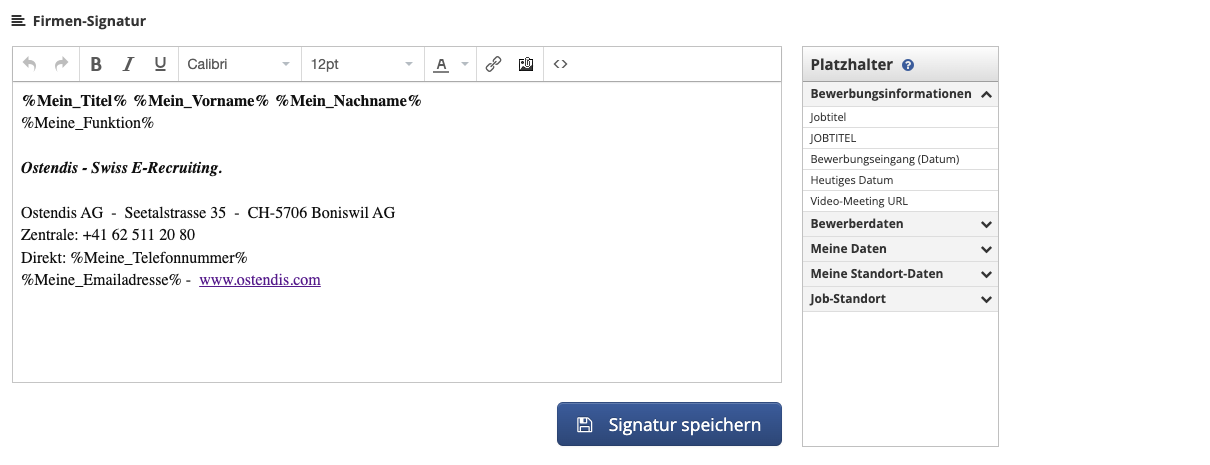
Under Company » Settings, the company signature can be customized.
For the company signature we recommend using the placeholders to work thate can be besides to found on the right side. This way for multiple HR accounts, the signature can be automatically adjusted to the respective user.
Change Personal Data for the Signature
To edit the placeholders in the signature, the personal data must be adjusted.
Here’s the guide.
How do I adjust the logo size in reply emails?
If your logo appears too large in reply emails, it’s usually because it was inserted directly as a file into each reply template. This is cumbersome to maintain – and size adjustment works only to a limited extent.
The better solution: Insert the logo once in the company signature.
This way, it will be displayed correctly in every reply template via the placeholder %Meine_Signatur% – and you can easily adjust the size.
How to correctly adjust the logo size
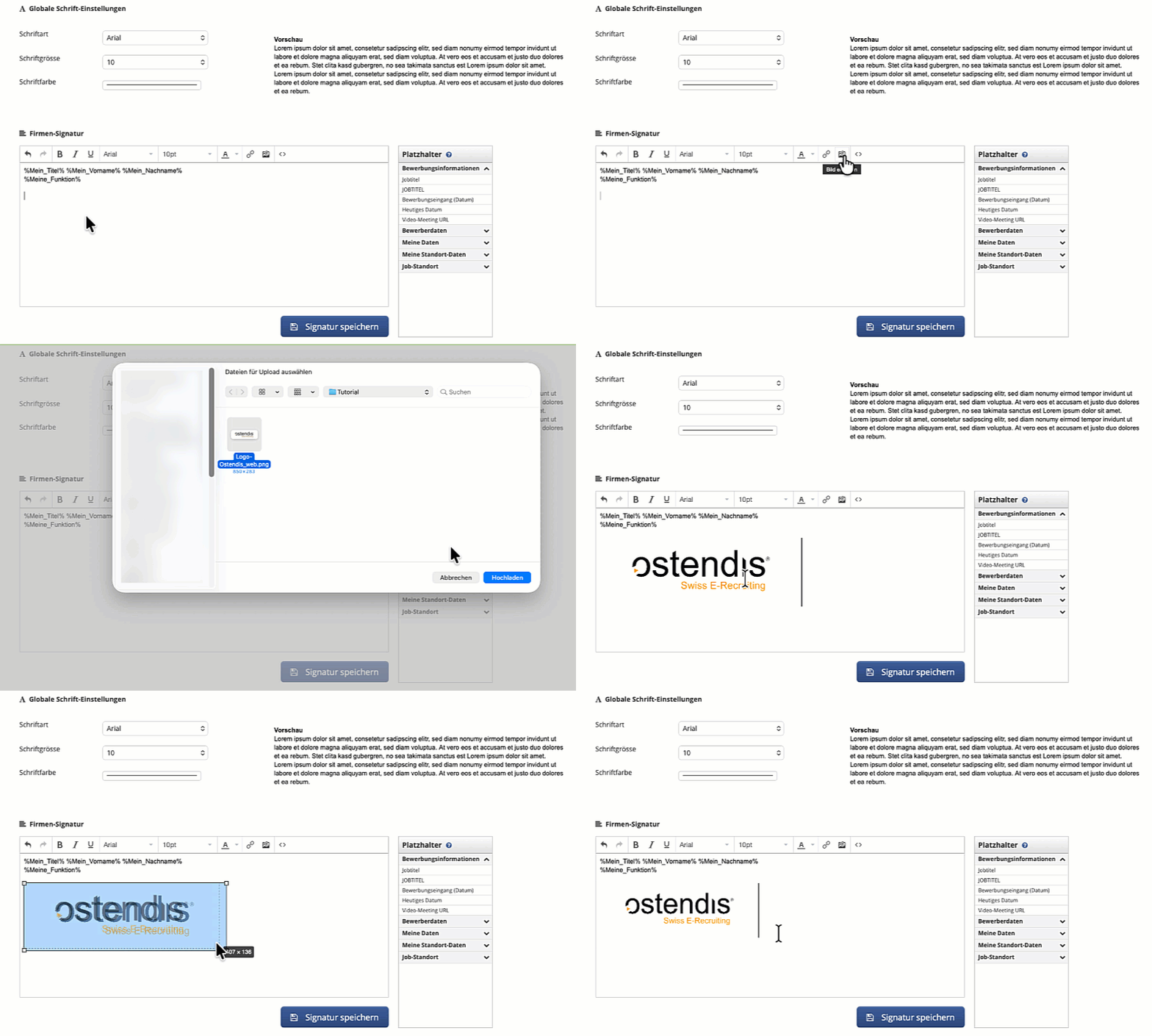
- Open the signature settings as described above
- In the editor, click the image icon
- Insert your logo as an image.
-
You can now adjust the size:
- Click the logo
- Drag the small squares in the corners to scale it down proportionally - Save the changes.
- Now open your reply templates and remove the previously inserted logo image there, so it doesn't appear twice.
Since %Meine_Signatur% is already used in your templates, Ostendis automatically pulls the updated signature with the newly scaled logo size.
💡 Tip
The signature is the central place for all details such as name, function, contact information – and also the logo. Changes made there are automatically applied to every reply template.
Wie hilfreich war dieser Beitrag?